
Every Digital Citizenship & AI Literacy Checkpoint is auto-marked, and reports are available to teachers and senior leaders as soon as students finish. There are two levels of report: a cohort-level report for the class or year group, and a student-level report for each individual student.
Together, they show what students already know about digital citizenship and AI literacy, where the gaps are, and which CENTURY nuggets can help close them. This page explains what each report contains and how to use it.
TABLE OF CONTENTS
Interpreting Checkpoint reports
Cohort-level report
The cohort-level report summarises how the class or year group performed. It shows:
- Average score across the cohort
- Average time taken to complete the Checkpoint
- Percentage of questions seen
- Topic breakdown: the average score in each of the four topics
- Strengths: the questions the cohort answered correctly most often
- Areas for improvement: the questions the cohort answered incorrectly most often
- Recommended nuggets for the cohort
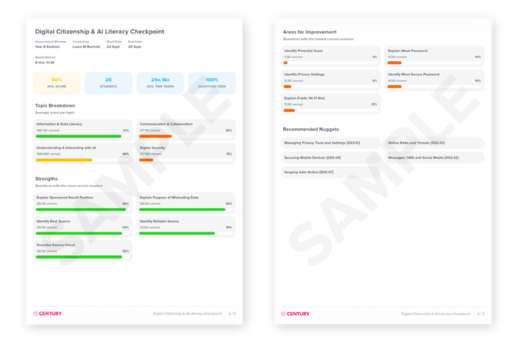
Strengths and areas for improvement are the most directly useful part of the cohort report. The cohort report is best used for curriculum and department planning, rather than for decisions about individual students.
Student-level report
Each student’s report shows:
- Percentage score
- Time taken to complete the Checkpoint
- Number of questions seen and number of correct answers
- Topic breakdown: the student’s score in each topic
- Question breakdown: which questions were answered correctly and incorrectly, and the topic each belongs to
- Recommended nuggets for the student’s areas for improvement
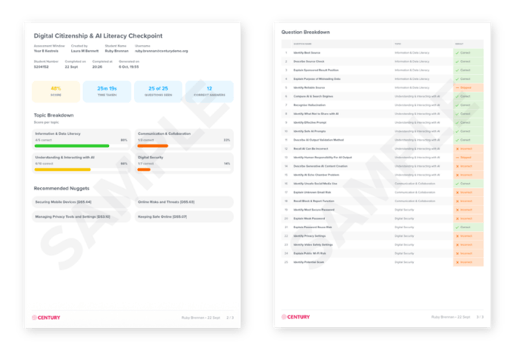
The percentage score shows how much of the assessed content a student has secured. The topic and question breakdowns show where to focus follow-up support for that student.
How to read a Checkpoint report
- Start with strengths and areas for improvement. An area for improvement points to a specific piece of content the cohort may not have secured.
- Then look at the topic breakdown. A topic with a lower average than the others may need more attention in curriculum planning. Use topic averages as a guide to where to look, rather than as precise measures.
- Finally, check the question detail. Use each student’s question breakdown to see who needs support, and assign the recommended nuggets to help close their gaps.
Ways to use these reports
- Before teaching: find out what students already know, so you can focus teaching time on the content they need most.
- Curriculum planning: use the cohort report to spot content a class or year group has not yet secured.
- Targeted follow-up: assign the recommended nuggets so each student can work on their own areas for improvement.
- Self-evaluation: use cohort results as evidence of what students know, and of your school’s provision for online safety.
Downloading your data
Cohort and student PDF reports can be downloaded, together with the raw and summary data as CSV files.
You can access reports after one student has completed an assessment by clicking the 'Download reports' button in the Assessment Manager.
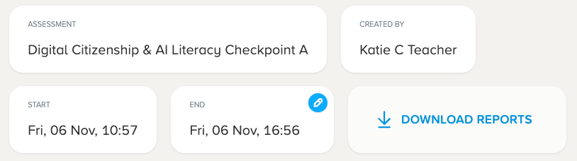
Note: Please be aware that after downloading a report during an open assessment window, you will be unable to download an updated report for 30 minutes.
Getting started
To find out more about the Checkpoints, see our Digital Citizenship & AI Literacy Checkpoints help page. To get started, learn how to set them to students in just 2 minutes here.