
We know how common it can be for students to forget their password. There are three ways to reset your students' passwords on CENTURY:
- Bulk reset passwords for entire classes
- Reset individual student passwords via Class Admin
- Students can reset their own password using the ‘Forgot your password? button on the login page
Bulk resetting passwords
We now enable teachers with manager access to bulk reset passwords for entire classes. This results in secure, randomly-generated passwords that you can then distribute to your students.
- Go to Class Admin.
- Click on the three dots icon in the top right corner, then select ‘Reset student passwords’.
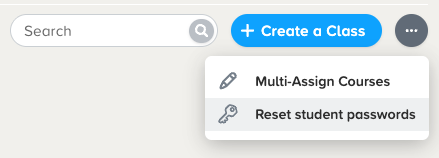
- You will be taken to a list of classes that you are assigned to, along with an overview of how many students are in each one. Select the correct class(es), then click ‘Next’.
- Here, you will need to select between simple or complex passwords. Simple passwords consist of two short words and numbers. Complex passwords are a random string of 12 characters. We recommend using simple passwords for younger students as they are easier to type, and complex passwords for older students or stricter policies.
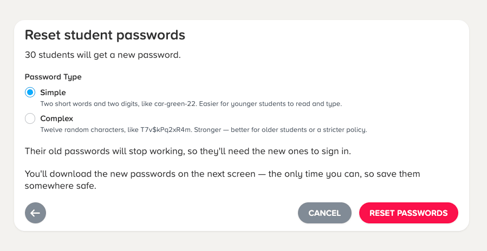
- Once you’ve clicked ‘Reset passwords’, it might take a few minutes for the system to process your request. Once it’s complete, you will be able to download a list of new passwords set to each student.
Important: This page is the only place you will be able to download this password list. Once you leave the page, you will not be able to retrieve this again for security purposes.
Note: The new passwords will work immediately, so any old passwords can no longer be used.
Teacher reset via Class Admin
-
Go to Class Admin
-
Click on the Students tab along the top and search for the student you are looking for.
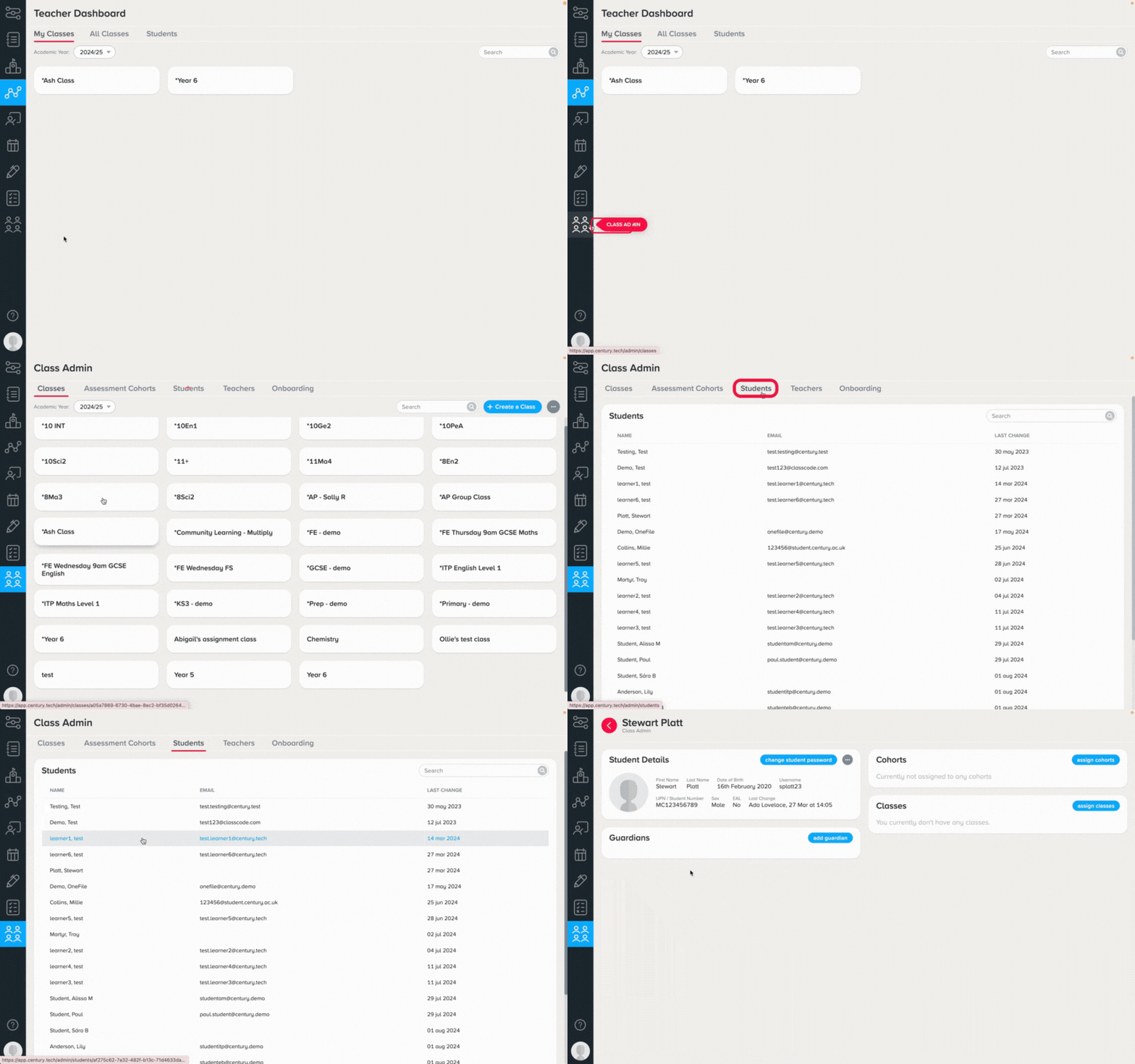
3. This will take you to the student's information page. Here you can view the username and click the ‘Change student password’ button.
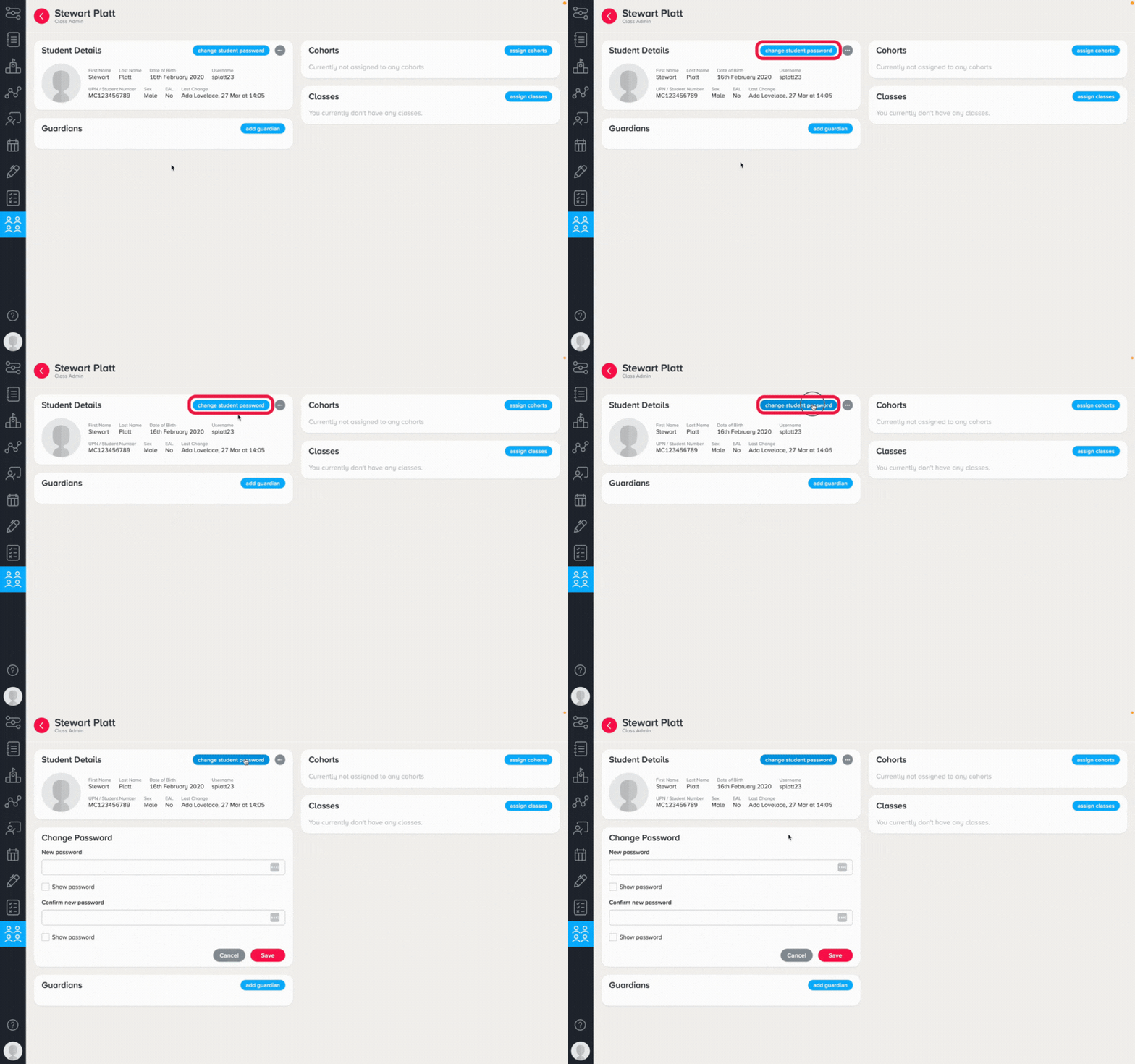
4. Enter the student's new password and click ‘Save’.
Note: The new password must be at least 8 characters long. To find out more about password requirements, click here .
Students use ‘Forgot your password? link on login page
If your students use their email address to log in to CENTURY, they will be able to reset their password using the ‘Forgot your password?’ button on the CENTURY login page.
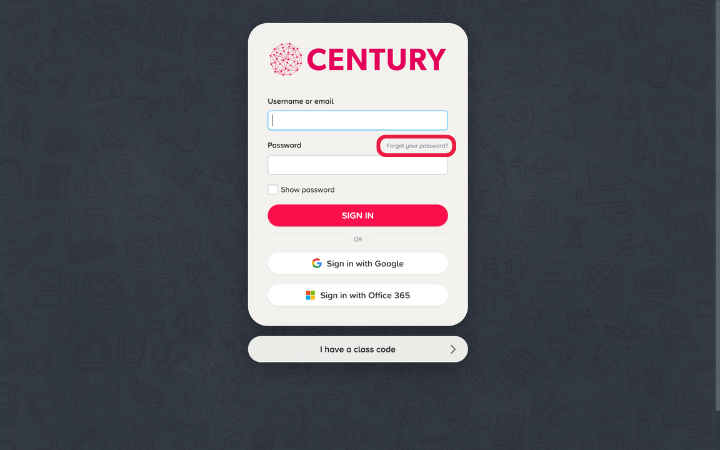
Once clicked, the user will be prompted to enter their email address. An email will be sent to the user to reset the password for their account.