
TABLE OF CONTENTS
Planning for the tests
Academic Assessments
For primary assessments, most students can complete a test within 30 minutes, whereas secondary assessments are designed to be completed within a 50-minute lesson. Students who usually work with additional time during tests are able to do so, up to a total test duration of 1 hour.
If students are sitting multiple tests on the same day, we recommend setting breaks between them.
Wellbeing Tool
The Wellbeing Tool can be taken in under 5 minutes, and we recommend setting them to your students ~3 times a year.
IT setup
To ensure a smooth process, please follow this link from a student device before completing the survey. This will check that nothing essential is blocked by your school web filters.
Your IT team should whitelist the following domains:
The tests requires a continuous internet connection throughout. It does not require any special equipment, such as headphones.
We recommend creating an assessment window in advance to make sure there are no issues, and that you are familiar with the management of assessments. To learn how to do so, read the following section, ‘Scheduling assessments’.
Scheduling assessments
To set up an assessment, follow these steps:
1. Select the Assessments tab from the menu on the left.

2. Click on the ‘New Assessment Window’ button. Select your preferred assessment, then click 'Next'.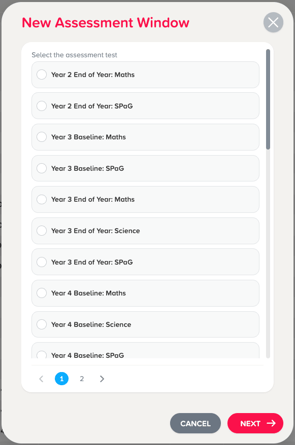
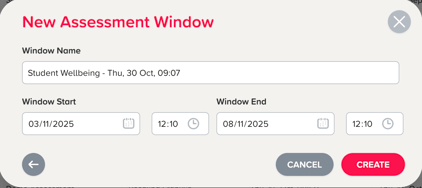
3. Set the start and end dates and times, change the window name (optional) and click ‘Create’.
Note: Students will be able to access the assessment during these times, so we recommend only setting it for the time window during which you want students to sit the test.
4. You will then be taken to the Assessment Manager page. Click on the 'Add Classes' or ‘Add Students’ button, where you can select from the classes or students from within your organisation. Then, click ‘Add’.
Note: You can continue to add students/classes to the assessment window, even once it is underway.
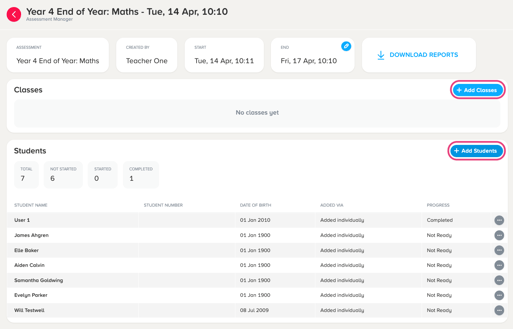
5. If you wish to change the start and end time, click the pen icon in the Start or End sections. Set a new date and time, then click ‘Apply’ to save your changes.
Note: You can amend the end date and time, even once the assessment is underway.
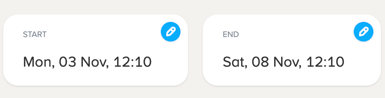
6. The assessment will automatically begin once the starting date and time has passed. The Assessment Manager page will display each student’s progress as they complete the assessment.