
Rooms are how you give students access to Maths Prep. A room holds a group of students and sets the exam board and tier they will practise at. Only students in a room can use Maths Prep, and each student can only be in one room at a time. There is one room per exam board and tier combination.
Table of Contents
Room setup and management
Open the Maths Prep Tab
On the Teacher Dashboard, select the Maths Prep tab:
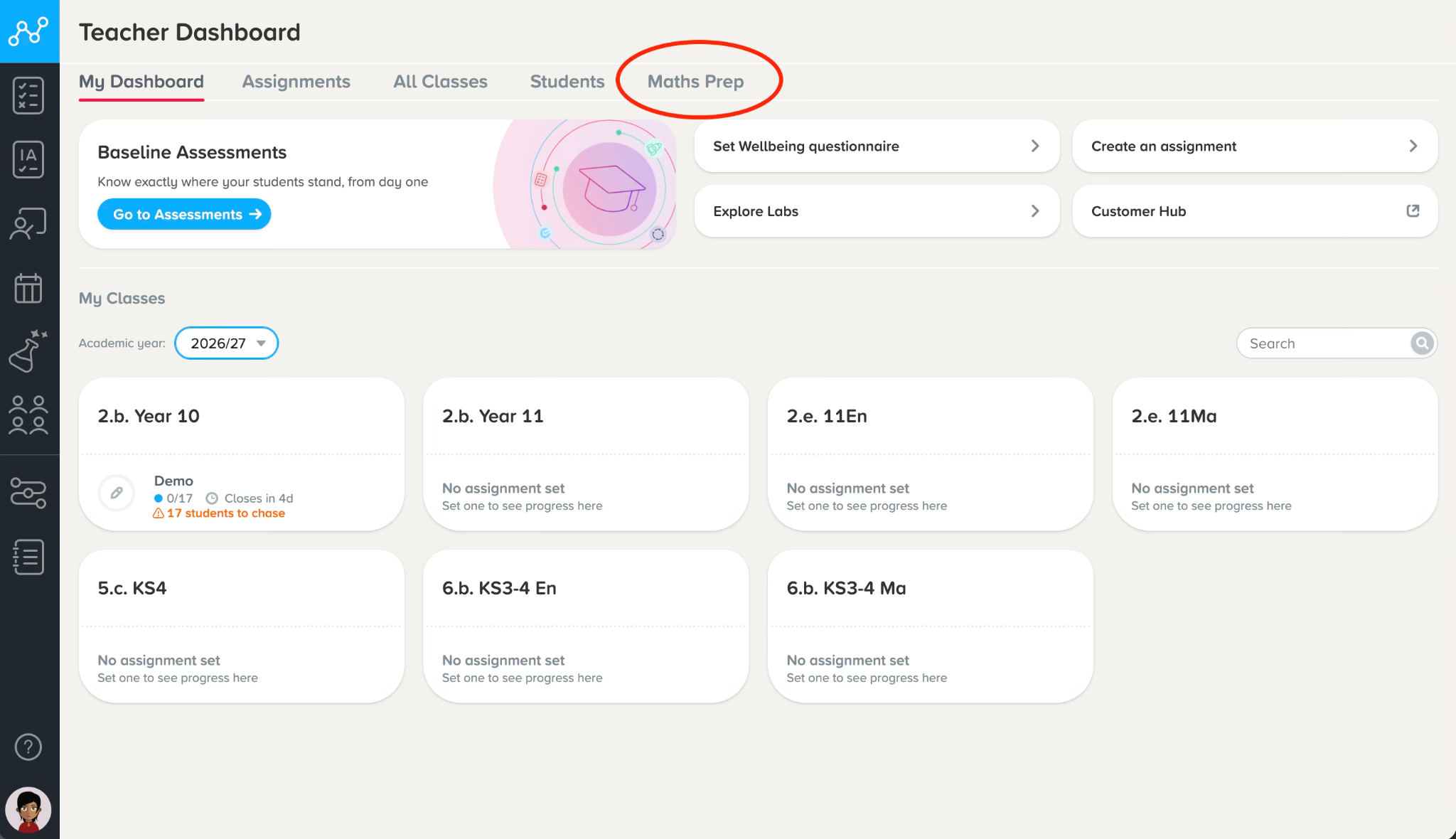
The Maths Prep tab opens on the Rooms overview. The first time you visit, there will be no rooms yet.
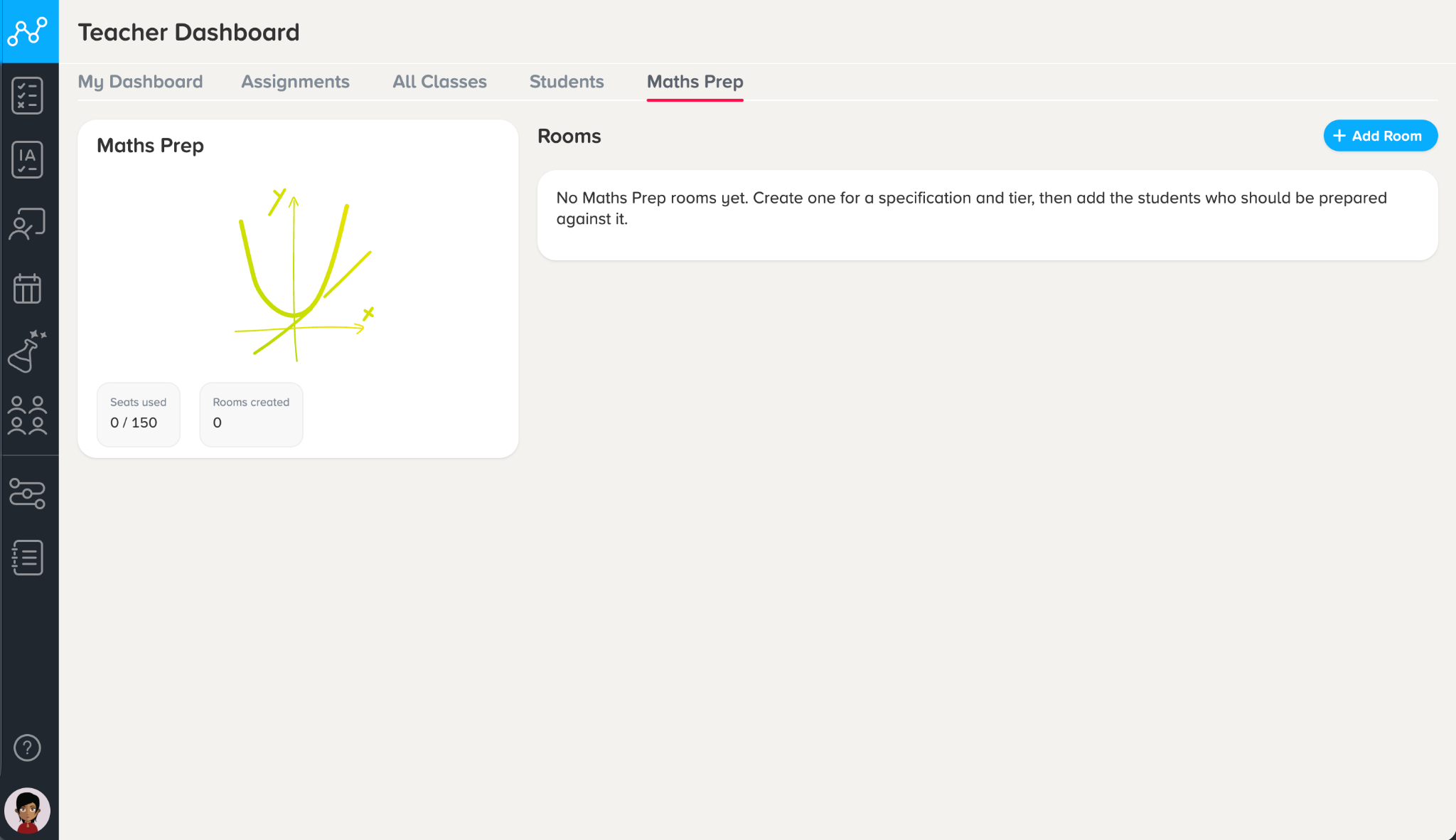
Activate a room and add students
- Select ‘Add room’. Choose the room you want from the dropdown and click ‘Create Room’. This will activate a room for your chosen exam board and tier.
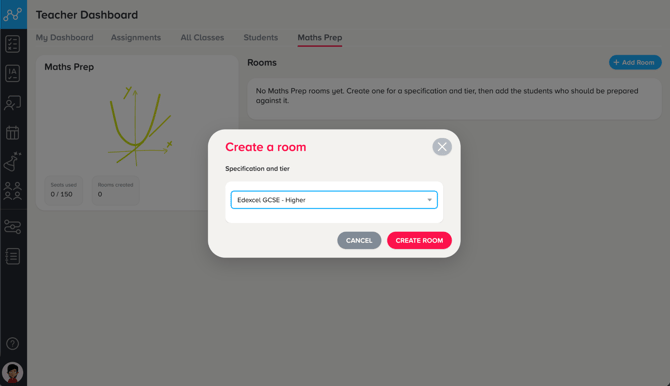
- Open the room and select ‘Add students’
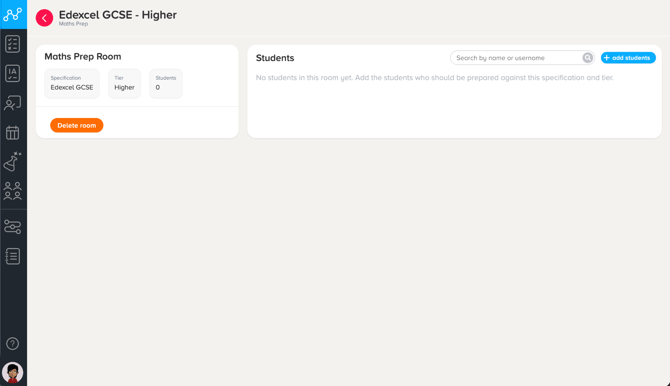
- Select the students you want to add to the room. You can search for and add individual students, or add entire classes.
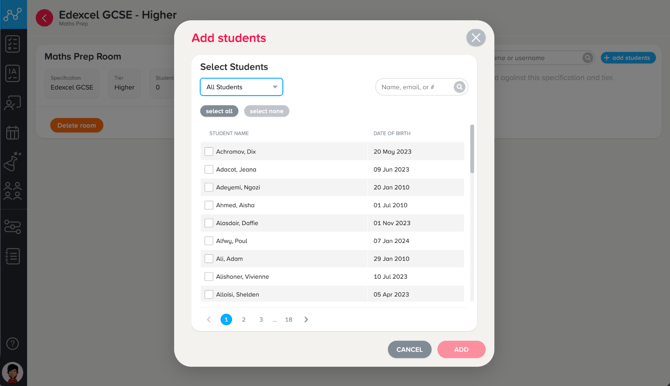
All teachers have access to rooms and can see all students in each room.
A student can only be in one room at a time.
Manage students in a room
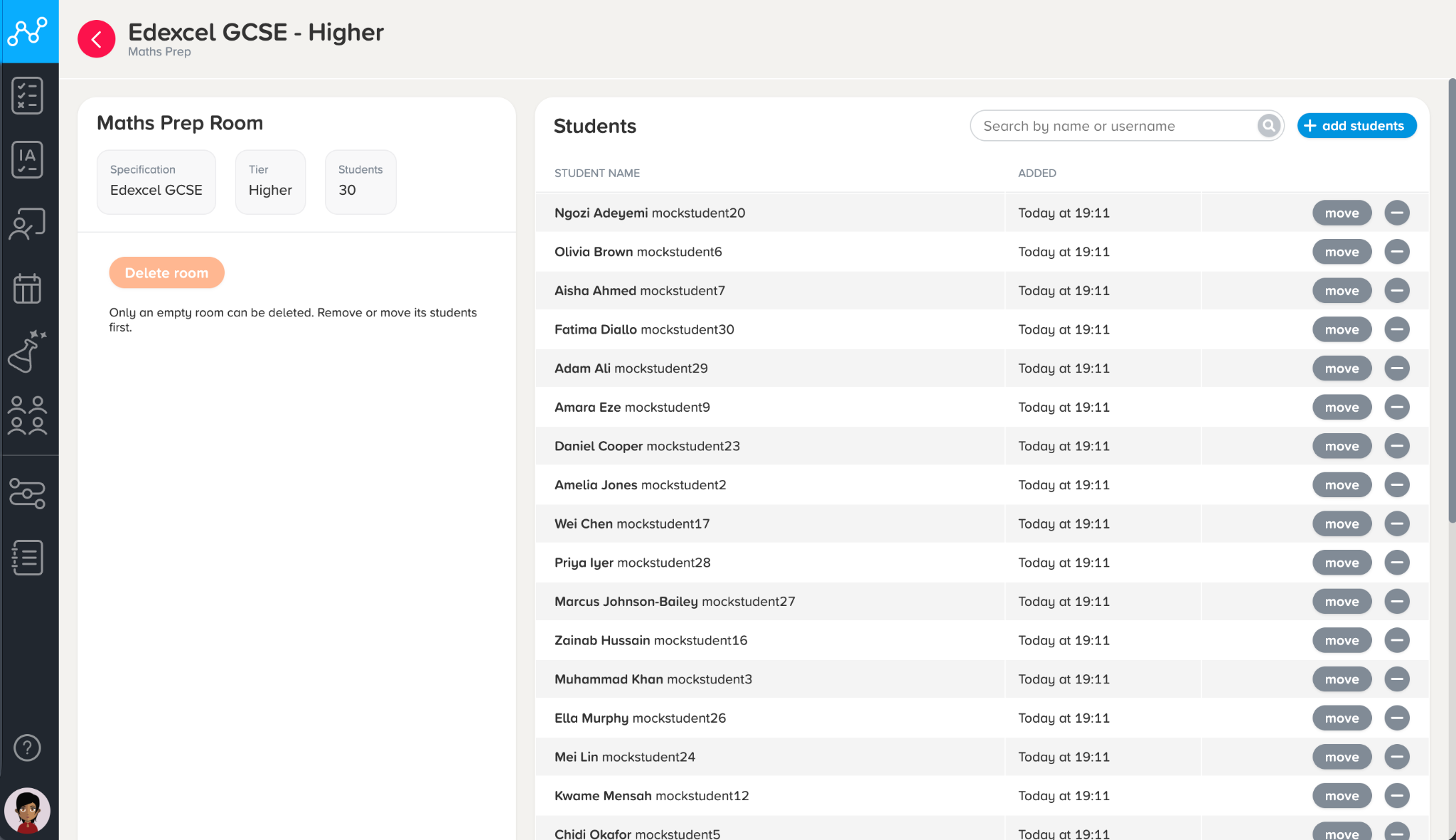
Open a room to see the students in it. From there you can:
-
Use the search bar to find students in a room
-
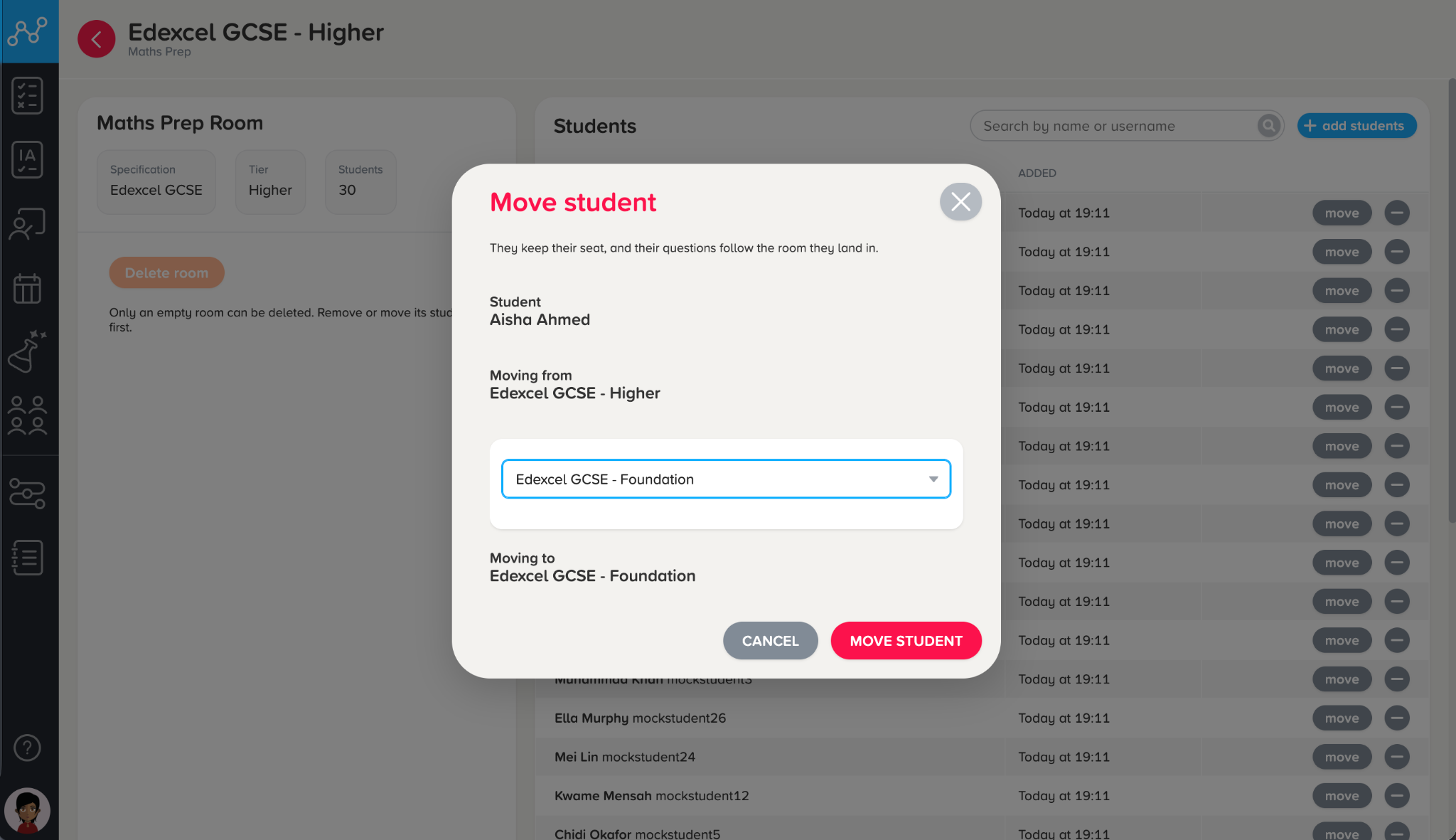
‘Move’ a student to another existing room. Select the room from the dropdown that you wish to move them to. If there is no room to move the student to you will need to create a new room before you are able to move the student.
-
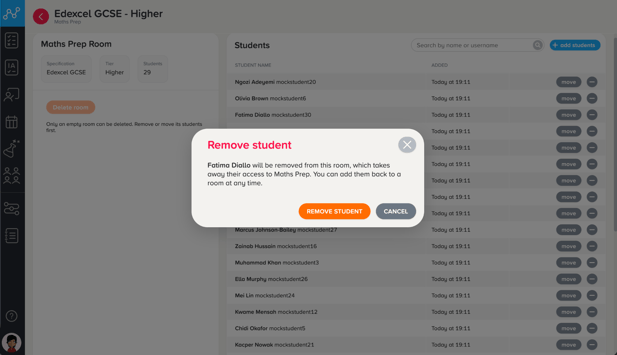
‘Remove’ students from the room. This will not delete or remove any of their data, it will just stop the student from having access to Maths Prep GENai. They can be added back in at any time.
FAQs
What are rooms for?
Rooms are how you give students access to Maths Prep GENai, our GCSE Maths Exam Practice tool. The exam board and tier that you choose determine the questions the students will see.
Who can give students access?
Any teacher in your organisation can add students to rooms.
Can a student be in more than one room?
No. Students can only be in one room at a time. To change a student’s board or tier, move them to another room.
Can I delete a room?
Yes. Once all students have been removed from a room, you can deactivate it from the Room or the Rooms Overview.
I want to create multiple rooms of the same exam board and tier, can I do that?
No. There is only one room per exam board and tier combination.
Does removing a student delete their work?
No. Removing a student only removes their access, their work is kept and you can allow them back in at any time.
How many students can be in a room?
Each organisation has a limited number of student seats for Maths Prep GENai. You can put as many students in a room as your seat limit allows. You can check how many students are in rooms from the Rooms Overview page.
What do students see?
Students do not see Rooms. Once added to a room they will have access to Maths Prep GENai and will see questions from the exam board and tier that you have chosen for them.
Can I search for students in a room by UPN?
No. Search is enabled on their name and username.
Can I see how many students are in a room?
Yes. The number of students per room is presented on the Rooms overview.