
Table of Contents
Preparing students for assessments
Students should start an assessment by navigating to the Assessments tab and selecting ‘Start’ for the test that they are sitting.
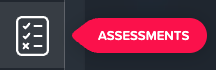
Note: If the student has just logged in, the Assessments tab may not appear on the left-hand menu. They will need to refresh, or click on a different tab before it will appear.
Before starting the assessment, students may customise their experience by:
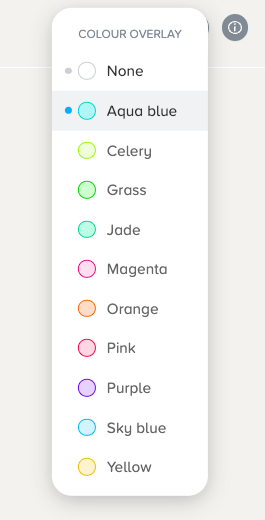
- Adding a colour overlay by clicking on the Settings icon in the top right corner.
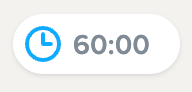
- Showing / hiding the test timer by clicking on it.
After reading the instructions, they should then click ‘Start Assessment’. They will then have up to 1 hour to complete the assessment.
It's important that all students complete the same assessment(s) in each session. Students must complete the tests in silence, without conferring with one another. They can have a pen and paper to write any workings out during the test.
During the test
A progress bar at the top of the page shows how many questions are left in each assessment. Students can use this bar to revisit previous questions.
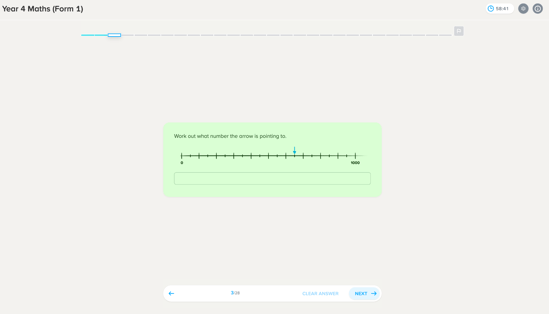
If a student navigates away from the test, they can return to it from the Assessments tab and resume. However, the timer will continue to count down. Once the timer has timed out after the allocated time period, students cannot return to the assessment.
If they finish all questions before the timer ends, they can select ‘End Assessment’. Once they do this, their answers are submitted and they can no longer go back to the assessment. They should also not disturb other pupils while the assessment is still ongoing.
If more than one assessment is planned for a single session, students will return to the main Assessments page and will be able to start the next one immediately.